Undo, Redo & History
Almost everything in Zerosum is reversible. Undo, redo, or browse your full history timeline to recover from mistakes.
Written By Pedro
Last updated About 1 month ago
Almost everything you do in Zerosum is reversible. Undo, redo, or browse your full history timeline to recover from mistakes.
How to undo and redo
There are four ways to undo or redo an action:
- Keyboard shortcuts: use the undo and redo shortcuts listed in Keyboard shortcuts. They work throughout the app, except while you're typing in a text field.
- Sidebar buttons: three icon buttons at the bottom of the left sidebar: Undo, Redo, and History. Click Undo or Redo to reverse or re-apply your most recent action; click History to open the full timeline.
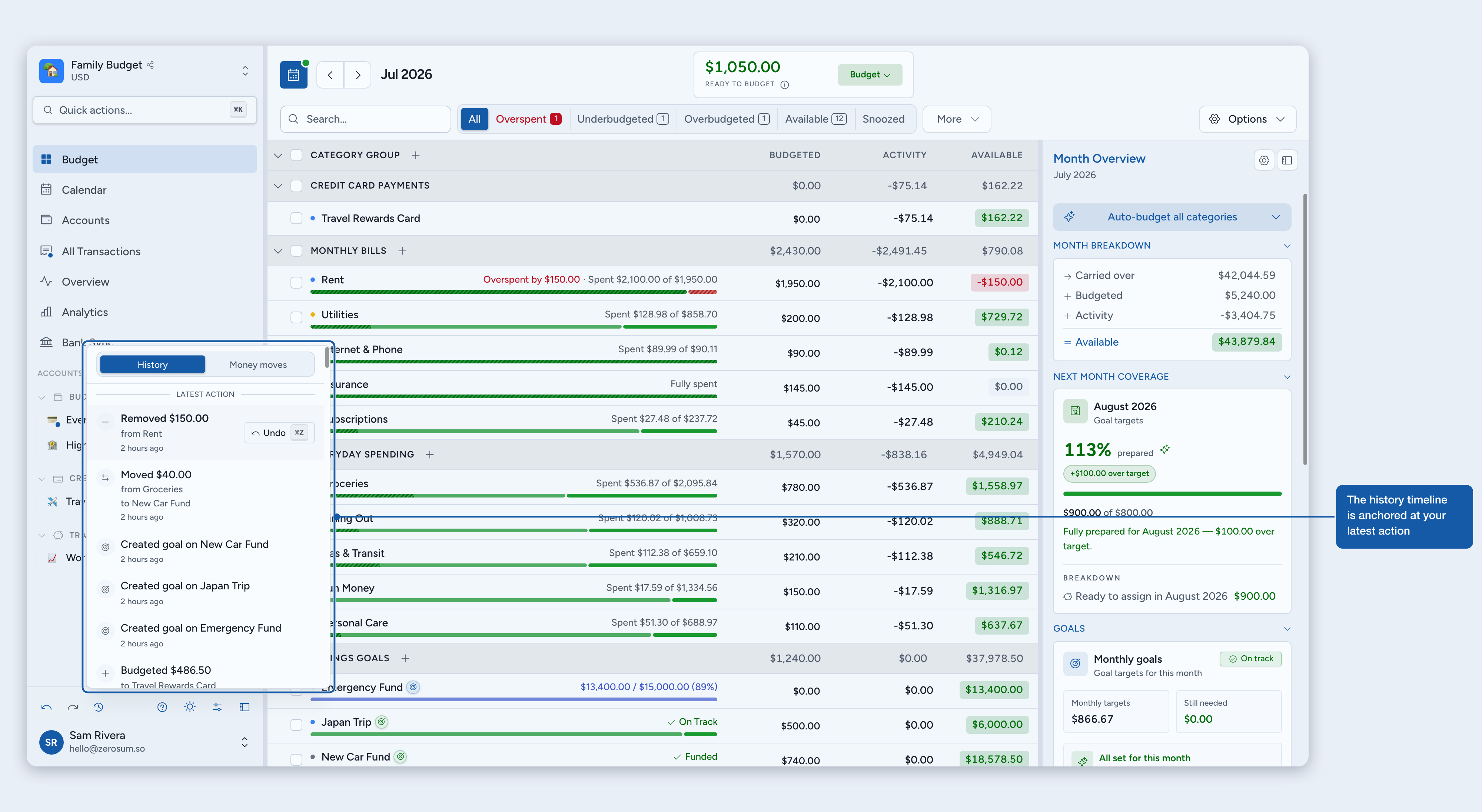
- History popover: open History to see your full timeline. Click the row just above the cursor to redo one step, or the row just below to undo one step. Everything else is read-only context.
- Command palette: open quick actions and type "Undo" or "Redo".
The history popover
The History button opens a timeline of your recent actions, organized around a cursor that marks your current position:
- Above the cursor: the redo stack. Actions you've already undone, waiting to be redone.
- The divider: marks exactly where you are on your timeline. It reads Latest action until you undo something, then You are here once there are actions above it to redo.
- Below the cursor: the undo stack. Actions you can still reverse.
Each row shows a human-readable label like "Moved $30 from Groceries to Gas" or "Budgeted $50 to Utilities". Click the row immediately above the cursor to redo one step, or immediately below to undo one step; the cursor re-anchors automatically so chained clicks stay in view. Rows further away are read-only context.
Money moves
The history panel has a second tab: Money moves. It lists every budgeting change from the last 90 days: money you budgeted to a category, removed from a category, or moved between categories.
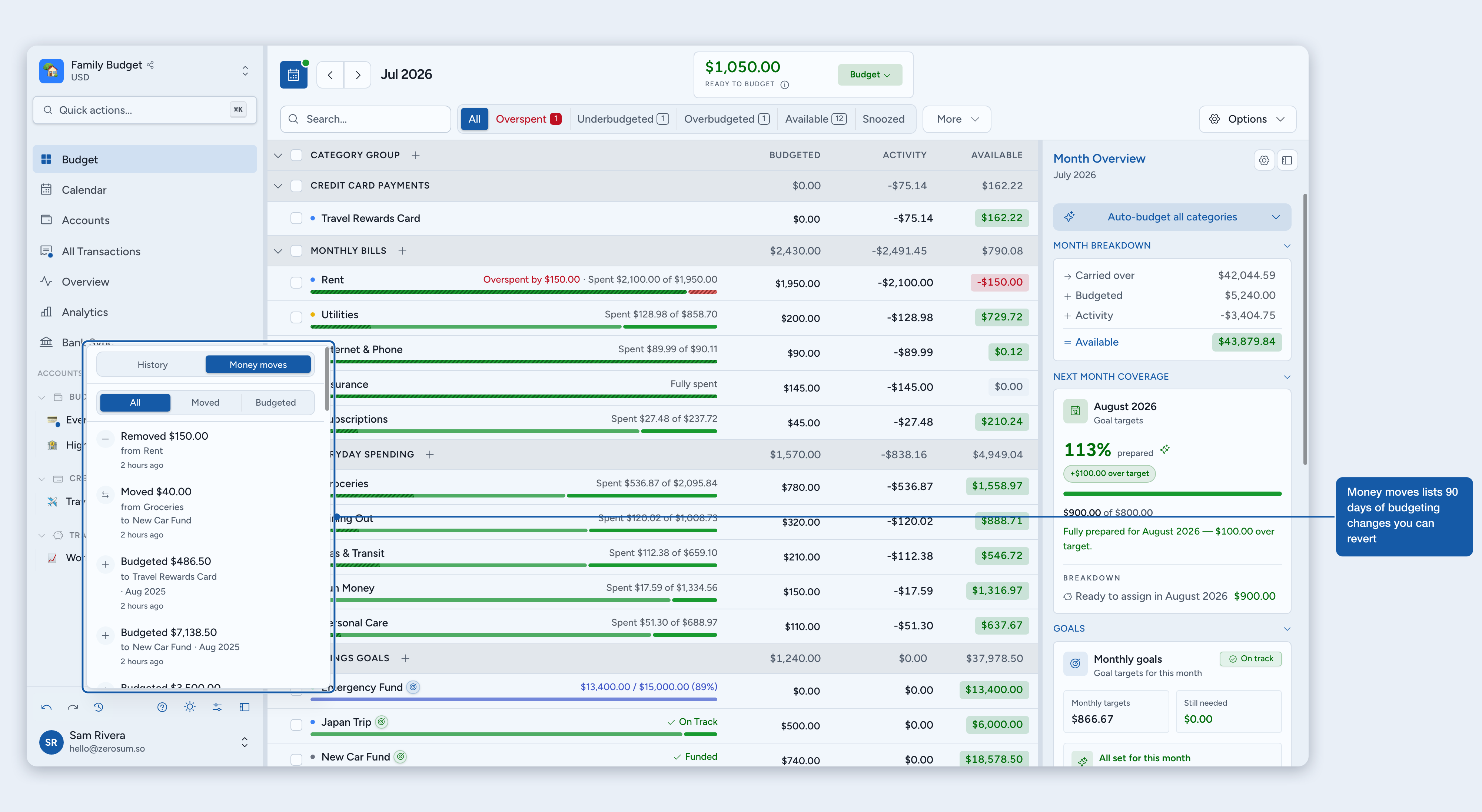
- Revert: hover a row on desktop, or tap it on mobile, and choose Revert to put that money back. The revert applies at today's values as a new action, so it appears in your history and can itself be undone.
- Filters: switch between All, Moved, and Budgeted to narrow the list.
- Reverted rows: a move you have reverted shows a Reverted badge and can't be reverted again.
- Limits: rows whose category was deleted can't be reverted, and auto-budget batches are listed for reference only. Money moves older than 90 days age out of the list.
Reverting is different from undo: it doesn't rewind history. It simply moves the money back and leaves everything you did afterwards untouched.
What can be undone
Almost everything:
- Transactions: create, edit, move, approve, reject, match, unlink, delete, duplicate, bulk edit, reconcile
- Category budgets: budget money, unbudget money, move money between categories, auto-budget
- Categories: create, rename, delete, hide/unhide, reorder, move to group
- Category groups: create, rename, delete, reorder
- Accounts: create, edit, close, reopen, delete, reorder
- Account groups: create, rename, delete, reorder
- Payees & tags: create, rename, delete, merge payees
- Goals, notes, recurring & sync: set, edit, and delete goals and notes, recurring templates, and the review actions you take on bank-sync transactions
What can't be undone
A small, honest list:
- Deleting an entire budget: from the budget menu (budget switcher) → Delete Budget, or the Manage Budgets page. Permanent by design.
- The automatic bank-sync poll: the background fetch itself isn't undoable, but your Approve, Reject, Match, and Unlink actions are.
Details
ℹ️ Zerosum keeps your most recent 50 actions available per budget. History is per-budget, so shared-budget members share one stack, and older entries age out as new ones arrive. Your undo stack lives on the server, so reload, switch tabs, or change device and it's still there.