Bank Sync
Connect through Plaid or Lunch Flow, link accounts, control pending imports, and understand review, matching, duplicate prevention, and provider management.
Written By Pedro
Last updated 5 days ago
Zerosum connects to your bank through Plaid in the US and Canada, or Lunch Flow everywhere else. Both use the same safe review, matching, and duplicate-prevention flow. Prefer a provider account you pay for and control yourself? See Bring your own provider, which covers SimpleFIN and the Lunch Flow Personal API.
How bank sync works
Read-only. Bank sync can see balances and transactions, never move money.
One managed provider at a time. Use Plaid or Lunch Flow, not both. Disconnect the current one before switching. Bring your own provider connections work alongside either.
You control linking. Connecting a bank does not add every account to every budget. You link each provider account to a Zerosum account yourself.
Safe review. New posted transactions appear in the register and count right away, while anything still pending at your bank waits in the Pending at bank section. Approved or reconciled entries are not silently overwritten.
Automatic sync. Linked budgets sync about every six hours, and a best-effort sync also runs the moment you link an account.
ℹ️ Managed bank sync is part of Pro, including your Pro trial. Bring your own provider is included with Plus and with Pro. In a shared budget, only the owner can connect and link accounts.
Choose a provider
Open Bank Sync from the sidebar and pick your region: Plaid for the US and Canada, or Lunch Flow everywhere else. The provider handles the sign-in, and Zerosum only ever receives read-only data, never your banking password.
Connect Plaid
Open Bank Sync and choose Connect a US or Canada bank.
Complete Plaid's sign-in and pick the accounts to share.
Back in Zerosum, link each account to a new or existing Zerosum account.
Use Add or remove accounts, Reconnect, or Connect another bank whenever you need to.
Connect Lunch Flow
Open Bank Sync and choose Connect bank accounts.
In the Lunch Flow portal, verify your email if asked, add your institution, and authorize your accounts.
Return to Zerosum, which refreshes the available accounts.
Use Manage bank connections any time to add, remove, or re-authorize institutions.
Link a provider account to Zerosum
Create account: make a new Budget, Credit Card, or Tracking account and link it. Confirm the Working balance your bank shows, and Zerosum backfills recent activity and walks it back to a starting transaction. First-link posted rows arrive already approved, so the review banner mostly just asks you to categorize them.
Use existing: attach the provider account to a manual Zerosum account. Its history stays put, and recent imports arrive for review so you can match them safely.
Plaid backfills a 3-day window on first link; Lunch Flow re-reads a 7-day overlap on every sync so delayed data is not missed. See Understanding account balances.
Set up your Lunch Flow account
Lunch Flow lets you tune each account from its portal. Open Manage bank connections, select the account, and use the tabs below. Plaid needs none of this.
Choose the right balance
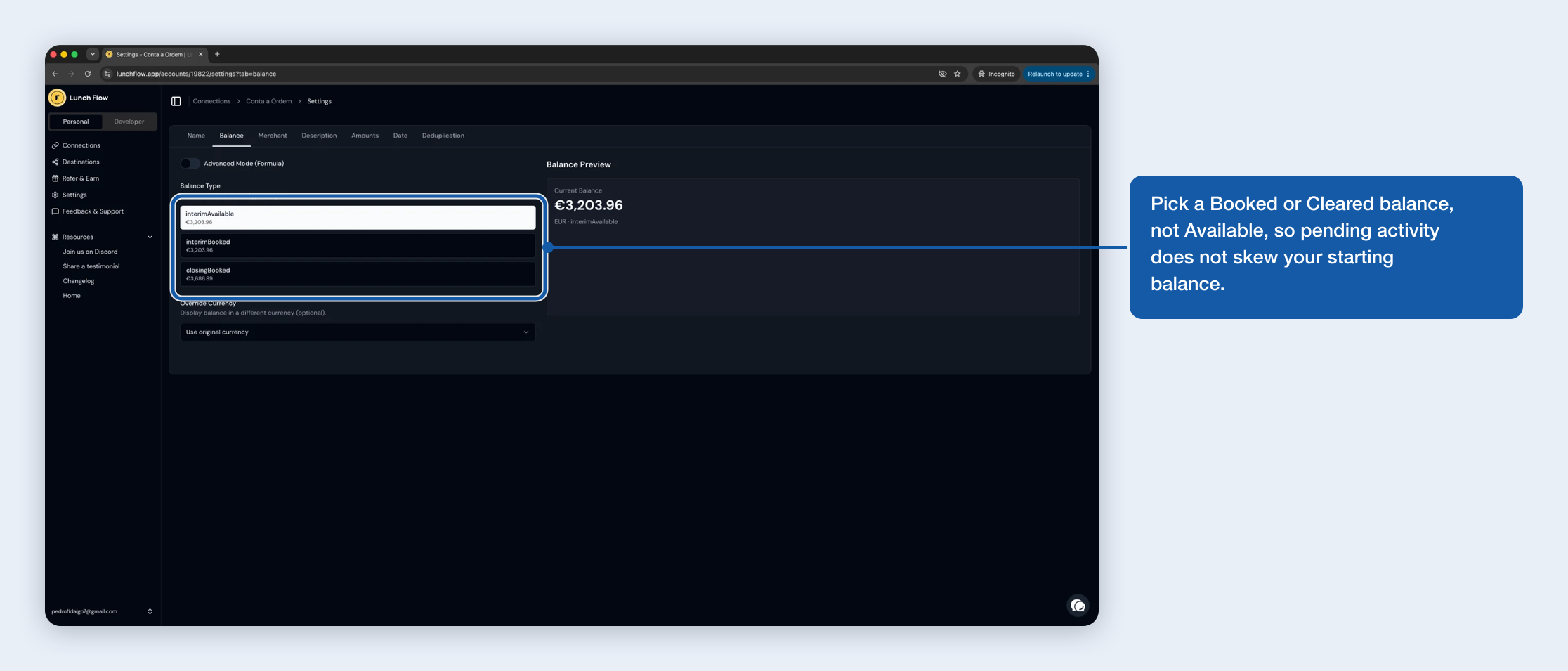
Lunch Flow sends one balance per account. On the Balance tab, pick a booked or cleared balance (like interimBooked or closingBooked) rather than an available one like interimAvailable, which folds in pending activity or a credit limit. Pick the wrong one and your starting balance and reconciliation look off by those pending amounts.
Fix reversed amounts
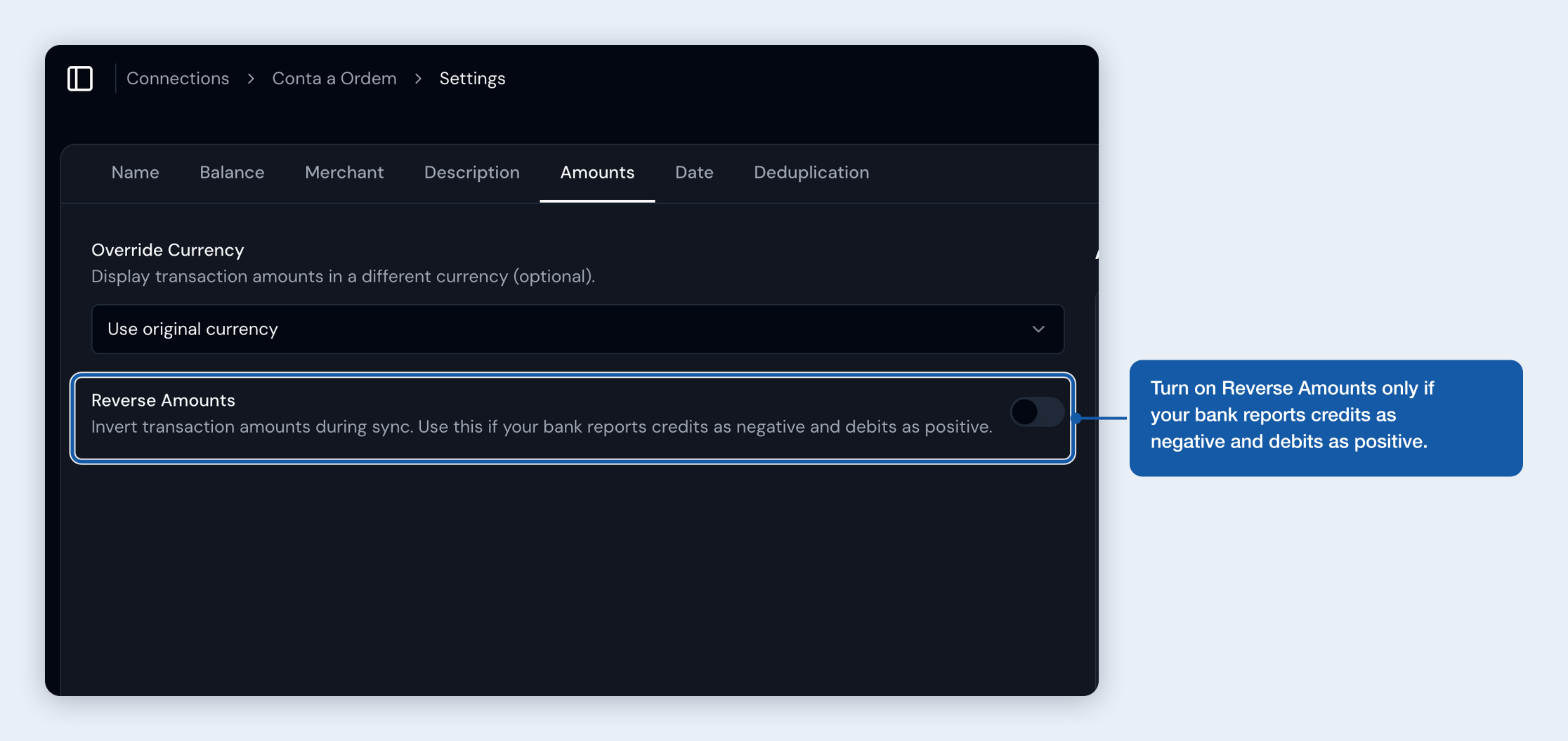
If a credit-card account sends charges and payments with the opposite sign, turn on Reverse Amounts on the Amounts tab. Use it only when your bank reports credits as negative and debits as positive.
Choose a transaction date
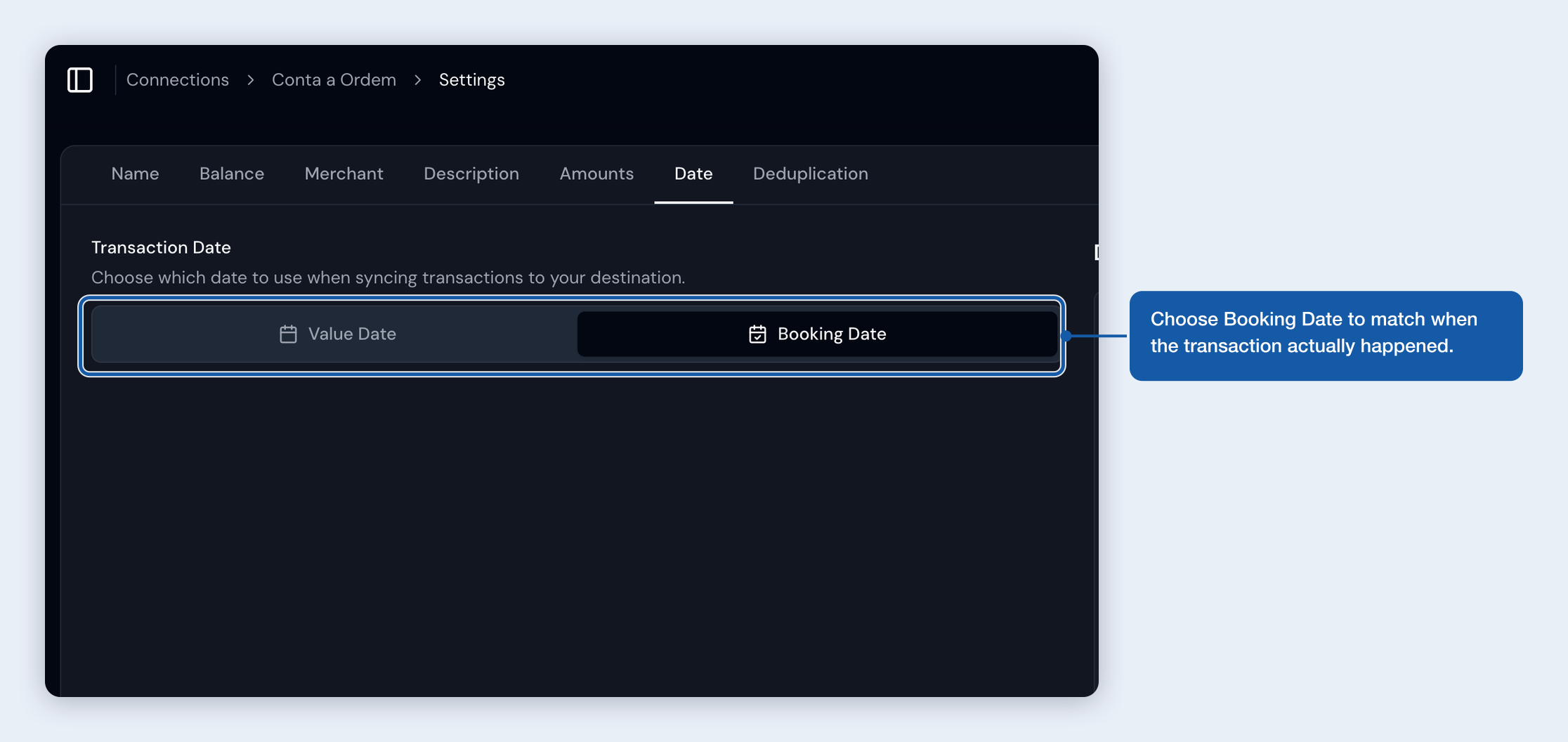
On the Date tab, compare the booking and value dates and pick the one that best matches when things happened, usually Booking Date.
Rename accounts to tell them apart
Some banks name every account the same. Rename them in Lunch Flow: open Manage bank connections, check each account's details to see which is which, give it a name you recognize, then refresh Bank Sync so the new names appear.
Connection status
Every card shows Last synced. If the bank's data is behind while the connection itself is healthy, a Transactions delayed badge appears and usually clears on its own. A connection that needs attention shows the reason, like Reconnect needed, rather than staying quietly green.
Review and pending transactions
Posted transactions appear inline in the register with an amber edge and count right away, and a banner shows how many still need you to approve or categorize. Anything still pending at your bank waits in the greyed Pending at bank section, where you can Enter Now, Edit, or Reject each one. For the full review, matching, and approve/reject flow, see Reviewing, matching & linking imported transactions.
Each account has an Import pending switch, on by default for both providers. Turn it off to import only posted transactions going forward.
When a pending transaction later posts, Zerosum matches it, by the provider's own reference or by an exact-amount match within about a week, and replaces it in place so you never get a duplicate. If it cannot match safely, it leaves both rows visible for you to sort out.
Unlink or disconnect
Unlink one account returns it to manual mode and stops syncing; the account and its transactions stay. With Plaid, unlinking the last account also disconnects that bank.
Disconnect Plaid or Delete Lunch Flow account removes the connection and returns linked accounts to manual mode. Existing transactions stay.
Troubleshooting
Transactions are not appearing. A sync runs at link time, then about every six hours. Provider delays can push a transaction to a later run.
Your first import could not finish. Zerosum links the account anyway and asks for the cleared balance your bank shows. That becomes the starting balance, and importing begins from today onwards. If a transaction from earlier today imports and the balance already includes it, reject it in review to keep the balance correct.
A duplicate is showing. Zerosum found no safe match. Compare the rows and Match them, Reject the in-review one, or delete an approved duplicate. If Match shows disabled, its reason explains what blocks the pair.
A bank needs attention. Use Reconnect when Bank Sync shows Reconnect needed or Reconnect soon.
A Lunch Flow account is missing or its balance looks off. Refresh Bank Sync, and check the Balance tab to make sure you picked a booked or cleared balance.