For Next Month
Set aside income or Ready to Budget money for next month. Learn how For Next Month supports month-ahead budgeting in Zerosum.
Written By Pedro
Last updated 4 days ago
For Next Month lets you set money aside so it lands in next month's Ready to Budget instead of this month's. Categorize income when you record it, or set aside money that's already in Ready to Budget. Either way, it waits for next month before you budget it.
What is For Next Month?
Normally, incoming money goes straight into this month's Ready to Budget. With For Next Month enabled, you can set it aside in either of two places: on the income transaction itself, or later from Ready to Budget. Both methods keep the money out of the current month and add it to next month's Ready to Budget.
Budget with last month's income. Everything you earn this month funds next month, so you begin each month fully funded before day one.
No paycheck timing pressure. Stop waiting for deposits to land before you can budget.
Choose when to set it aside. Categorize income immediately, or decide later how much of Ready to Budget you want to keep for next month.
Three ways to budget a month ahead
Being a month ahead means you spend this month using money you earned last month. There are three ways to get there; pick whichever fits your style, or combine them.
Budget ahead directly. Navigate to a future month and budget money to categories there. No setup required. Best when you already know how much each category needs; your current month's Ready to Budget decreases as you budget forward.
Categorize income as For Next Month. Choose For Next Month while entering a paycheck or other inflow. Best when you already know the transaction belongs to next month.
Set aside from Ready to Budget. Set aside some or all of the money that has already reached this month's Ready to Budget. Best when you want to decide later or keep the transaction on its real bank date.
💡 Tip: On desktop, open Options in the budget toolbar and choose Compare months to view two months side by side. It opens with last month next to the current month; use the month arrows above the second column to move it to next month, then budget directly in next month's columns.
How to enable
For Next Month is off by default. Turn it on in Budget Settings:
Click your budget name in the sidebar to open the budget menu.
Select Budget Settings.
Toggle on For Next Month and click Save Changes.
ℹ️ Note: Once enabled, a "For Next Month" category appears automatically in your income categories, and Ready to Budget gains an option to set money aside for the next month.
Categorize income as For Next Month
Add an income transaction, or edit an existing one.
In the category picker, select For Next Month. It sits at the top of the list alongside Ready to Budget.
Enter the amount and save.
Good to know
Last month or later. The category appears for transactions dated last month, this month, or any future month. A paycheck from the end of last month can still be set aside a few days late, and scheduled income can carry the category before it posts. Older transactions can't be set aside.
No outflows. Income amounts and $0 both work; only outflows can't use it. A scheduled bill you keep at $0 as a reminder can carry the category, and it sets nothing aside until you enter the real amount. The outflow option is disabled when For Next Month is selected.
Set aside part or all. You don't have to set everything aside. Categorize some income as Ready to Budget for this month and the rest as For Next Month.
Transfers from tracking accounts. Money moved from a tracking account (a brokerage, for example) into a budget account counts as incoming money. Pick For Next Month on the receiving side to set it aside, exactly like a paycheck. The category is offered only when the budget account receives the money; sending money out to a tracking account stays regular spending.
On credit cards. While a card carries debt, a card inflow pays the card down and nothing is set aside, because there's no spendable cash yet. Only the part that tips the card balance positive is set aside for next month, the same rule Ready to Budget follows for card inflows.
Set aside money from Ready to Budget
If money has already reached Ready to Budget, you can set it aside without editing the transaction or changing its date.
Open the current month and select Ready to Budget.
Choose Set aside for {next month}. If money is already set aside, the button reads Edit {month} set-aside instead.
Enter the total amount you want set aside from Ready to Budget.
Select Save changes.
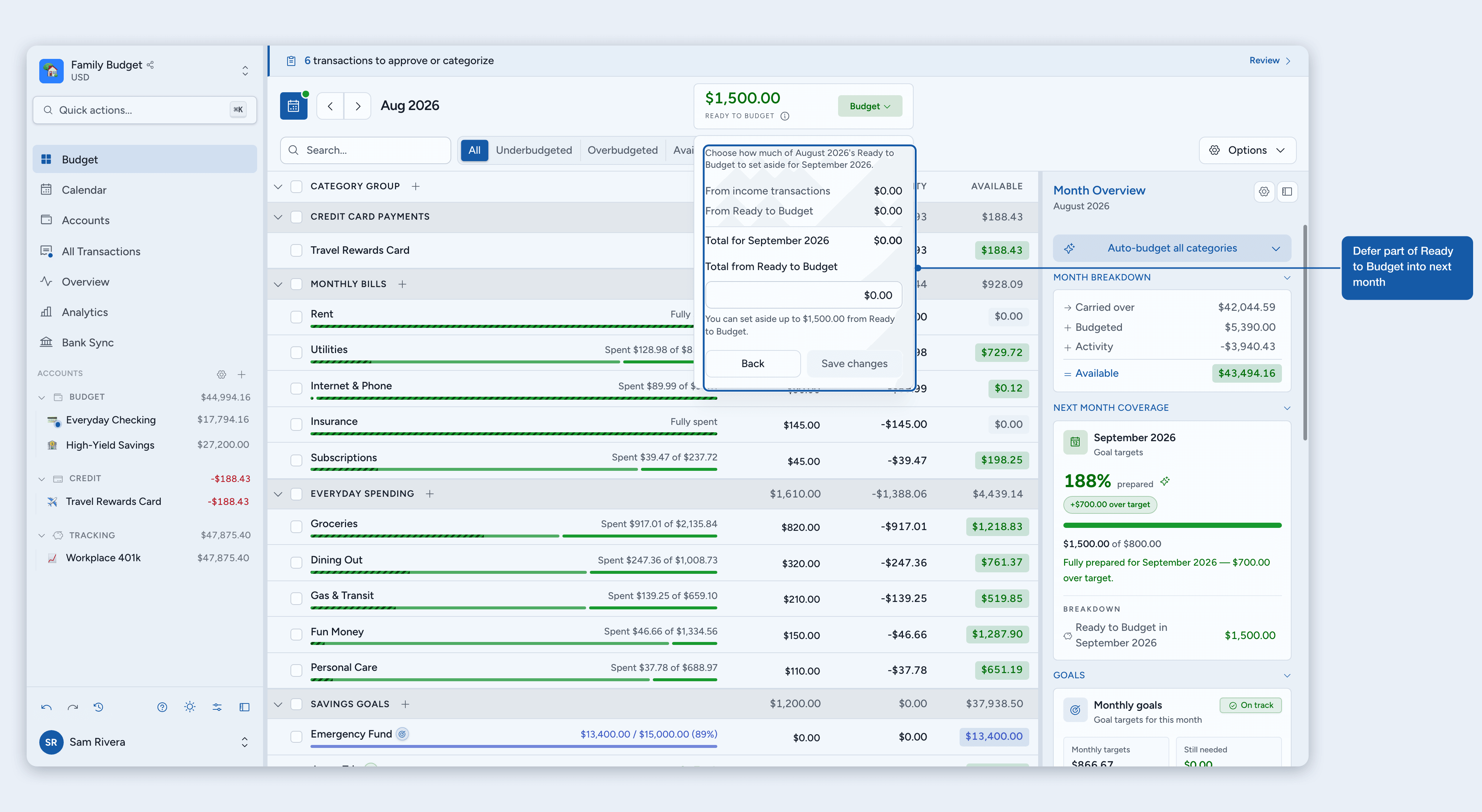
ℹ️ Note: The amount is the total, not an additional transfer. If $1,000 is already set aside and you change it to $1,500, Zerosum sets aside $500 more. Change it to a lower amount, or zero, to release money.
Edit or release it
From the source month: open the same set-aside action and change the total.
From the next month: select Ready to Budget and choose Edit {source month} set-aside.
After the source month has ended: you can reduce or clear its set-aside, but not increase it. The money is already included in the current month's Ready to Budget, so reducing an older set-aside does not add it a second time.
💡 Tip: If Ready to Budget is $0, open Budget Calculation with the info icon. You can edit an existing set-aside from there.
What happens next
The amount you set aside becomes part of next month's Ready to Budget and can be budgeted normally. Any amount you leave unbudgeted keeps carrying forward. When that next month becomes current, you can set aside its Ready to Budget again like any other available money.
Examples
Keeping an early paycheck on its real date
Your paycheck arrives on August 31 and adds $3,000 to August's Ready to Budget, but you want to use it in September. Set aside a total of $3,000 for September. August's Ready to Budget decreases by $3,000, September gains $3,000, and the transaction stays dated August 31.
Splitting income between months
You receive $5,000 in March and categorize $3,000 as For Next Month, keeping $2,000 as regular income. March's Ready to Budget gets $2,000; the $3,000 shows up in April.
Carryover to future months
April starts with $5,000 in Ready to Budget (including the $3,000 set aside in March). You budget $4,000 and leave $1,000 unbudgeted. That $1,000 carries into May automatically, just like any other unbudgeted money.
What if Ready to Budget goes negative?
If you over-budget in March, that deficit reduces April's Ready to Budget. So if March is $500 over-budgeted and you set aside $3,000, April receives $2,500 net.
ℹ️ Note: This works the same way it does without For Next Month. An over-budgeted deficit (a negative Ready to Budget) always reduces next month's Ready to Budget. The Carry over negative balances setting is separate: it only changes how an overspent category (one whose available went negative from spending) rolls forward.
Where to see it
Ready to Budget card. When your current Ready to Budget is zero, the card shows "$X set aside for next month" so you know money is reserved.
Ready to Budget actions. Open the card to set money aside or edit an existing set-aside.
Budget Calculation dialog. Tap the info icon for a breakdown of what came from income transactions, what came from Ready to Budget, and the total set aside for next month.
Next Month Coverage. In the budget side panel and the Overview "Plan Ahead" card, this shows how much of next month is prepared, measured against your next-month goals.
Tips
Start gradually. Set aside a portion of each paycheck, or set aside whatever is left in Ready to Budget near the end of the month. Over time you can build a full month's buffer.
Works alongside goals. Fund your savings goals from this month's Ready to Budget, then set aside whatever remains. The two are independent.
Watch for negative Ready to Budget. If it goes negative while setting money aside, you've budgeted more than you have this month. Reduce some category budgets before setting aside more.
ℹ️ Note: You can turn For Next Month off any time in Budget Settings. Income transactions are re-categorized to Ready to Budget in the month they were received, and money set aside from Ready to Budget is released back to its source month. The app asks you to confirm before applying this.