Credit Card Accounts
How Zerosum's Credit Card account type works: funded card spending auto-moves into the card's payment category, then pay from there. Best if you carry a balance.
Written By Pedro
Last updated About 18 hours ago
Zerosum's Credit Card account type auto-tracks what you owe. As you spend, funded card purchases move into the card's Payment category, then you pay from there. This is the right model if you carry a balance.
This is one of two ways to handle credit cards. If you'd rather the card simply behave like checking, see Budget accounts.
How it works
Three things happen each cycle. The middle one, auto-move, is what makes this model different.
- Spend: charge the card. The amount comes out of your spending category.
- Auto-move: funded card spending slides into the card's Payment category automatically.
- Pay: send a payment from checking. The Payment category drains.
💡 Tip: This is why the model shines for carried debt. When the spending category has enough budgeted, the auto-move parks that spend in the Payment category as it happens, so the card's negative balance is already accounted for and your Ready to Budget stays clean while you pay the card off.
ℹ️ Important: The auto-move only covers what the category was funded for. Charge $200 with only $150 left in Groceries and just $150 moves to the Payment category; the other $50 is card debt, so it doesn't roll Groceries negative or reduce next month's Ready to Budget. Budget more to Groceries to clear it and move the payment money automatically.
ℹ️ Important: Budgeted money always covers cash and debit spending first; card spending keeps whatever is left. The auto-move is recalculated whenever the category’s activity changes, so a later transaction can pull coverage back out of the Payment category. See “You spend cash from a category that was covering card spending” below.
Add a Credit Card account
- Click "Add Account". Open the account dialog from the sidebar.
- Choose "Credit Card". Use this for cards where you want auto-tracking and a dedicated payment category.
- Pick how you'll add it. Choose Manual to enter transactions yourself, or a bank-sync option to link the card automatically.
- Enter your current balance. Negative if you owe money today, positive if the card owes you. Existing debt stays out of Ready to Budget; positive credit becomes money you can budget.
- Click "Add account". Zerosum auto-creates a "Credit Card Payments" group with one Payment category for this card.
The Credit Card Payments group is auto-managed: you can hide categories or change their color, but you can't add or remove categories yourself. Adding a card creates one; deleting a card removes it.
The Payment category
Each Credit Card account has its own Payment category. Click it on the budget table to open the side panel. Its Funding for payment breakdown builds up from four numbers:
- Carried over from last month: what was left to pay at the end of last month.
- Budgeted here: money you budgeted manually this month (extra payments, catch-up).
- Moved from your categories: budgeted money that auto-moves here from your spending categories as you charge the card. When a refund reduces earlier card debt, this row can appear as Coverage released instead.
- Payments made: what you've already sent to the card this month.
These add up to Available for payment: the amount you can send right now without touching anything else.
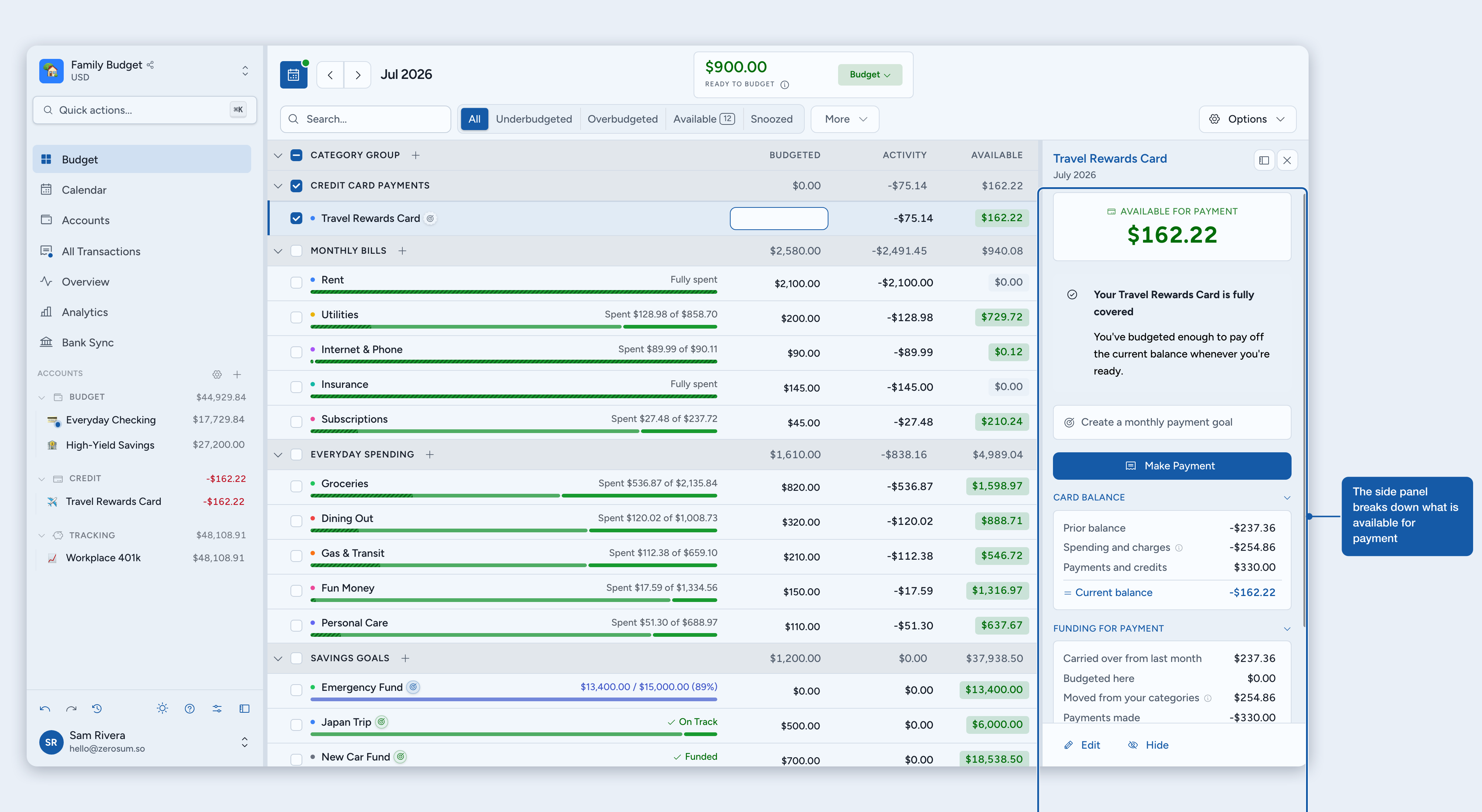
The category's color tells you where you stand:
- Green: Available for payment covers your card balance (or you've set money aside with nothing owed yet).
- Yellow: partially funded. Budget a bit more to cover the card, or to cover an upcoming scheduled payment.
- Red: payments sent exceeded what was set aside; the category is over-drawn.
- Neutral: no balance owed and nothing set aside yet.
When a category goes over on this card during the month, the overspent category shows the warning and the Payment category stays short by the same amount. Budget the overspent category and the money moves across automatically, or budget the Payment category directly. Either way, it turns green once it covers the full balance.
With a payment goal set, green means this month's amount is budgeted, even while a balance remains.
Create a payment goal
Carrying a balance you pay down over time? Without a goal, the Payment category stays yellow until you can cover the whole balance. A payment goal changes what the color measures, and it comes in two shapes: a fixed amount each month, or a date to have the card paid off by.
- Open the Payment category's side panel. Click the card's Payment category on the budget table.
- Click "Set a payment goal". The option appears while the card carries a balance.
- Pick a shape. Monthly: enter the amount you plan to pay each month. By date: pick the month you want the card paid off. There is no amount to type; Zerosum reads the card's balance and works out what to budget each month.
- Budget toward it. Budget the money here, or let auto-budget do it. The category turns green once this month's amount is budgeted.
- It never asks for more than you owe. On the final stretch, it only asks for what's left to fully cover the card. Card spending you've already covered this month doesn't count against it, so the auto-move keeps working exactly as before.
- A by-date goal re-plans every month. Each month it spreads whatever is still uncovered over the months left, so budgeting more or less than the suggested amount simply changes next month's figure. Overspending on the card raises next month's amount, not this month's; this month, the overspent category is the one asking.
- Money moved out of the Payment category is asked back first. Move money out of the category during the month and the goal asks for it back on top of this month's amount. The side panel says how much of the ask is putting that money back, so the number is never a surprise next to the monthly figure. The plan carries on as normal the following month.
- It plugs into the rest of your budget. Auto-budget funds it from Ready to Budget, and it counts toward your next-month planning, like any other goal.
- When the card is paid off, the goal rests. The panel celebrates, the goal stops asking for money, and you can remove it or keep it in case the balance comes back. A by-date goal reads Funded while the balance is covered, and Achieved once its due month has passed with the card still covered.
You can snooze either shape for a month from the row's goal peek on the budget table or from the card's side panel. A snoozed by-date goal re-plans from next month.
Recording a payment
Three ways to record a payment; pick whichever's nearest:
- From the Payment category side panel: click "Make Payment" to jump to the card with the inline-add row pre-filled.
- From the card's ledger: click "Make Payment" in the toolbar.
- From any add-transaction surface: pick the card as a transfer counterpart on a row from your checking account.
Each opens the inline-add row pre-filled with the payment amount and the card's Payment category. Adjust and save.
What happens when…
You overspend a category on the card
The category’s Available goes negative and shows a small card icon instead of the plain red overspend. The icon means the shortfall is unfunded card spending: nothing is missing from your bank accounts, but that slice of card debt has no money behind it yet. Budget more to the category and the coverage auto-moves into the card’s Payment category.
A plain red overspend means cash is missing. When a category has both kinds it shows red, and the side panel tells you the minimum to add to cover the cash part. Once the cash part is covered, what remains is pure card spending and the badge switches to the card icon.
At the month boundary the two parts split: the cash part reduces next month’s Ready to Budget (or stays on the category, per Carry over negative balances), while the card part leaves the category and stays as debt on the card, with the Payment category under-covered by the same amount.
You spend cash from a category that was covering card spending
Coverage is never locked in. Because budgeted money covers cash and debit spending first, a cash purchase can reclaim money that had already auto-moved to the Payment category.
Example. Clothing has $49 budgeted and you charge $49 to the card, so the full $49 auto-moves into the Payment category and the card spending is covered. Later you spend $36.50 from checking in the same category. That cash spending claims $36.50 of the budgeted money first, so the Payment category releases $36.50 and keeps $12.50. Clothing now shows $36.50 of overspending with the card icon, because that much card spending has nothing behind it anymore. Budget $36.50 more to Clothing and the coverage moves straight back.
The card icon reports what kind of spending is left unfunded, not which transaction arrived last. If you’re coming from YNAB, this works the same way there.
You return something on the card
Record the refund in the same category as the original purchase. You owe a bit less, the category gets its money back, and the Payment category releases the same amount, shown in the side panel as Coverage released.
Example. You charge $80 to Groceries (fully budgeted), so $80 auto-moves into the card's Payment category. You return $30 of it. Groceries gets $30 back, the card balance improves by $30, and the Payment category releases $30 of coverage. You're left with exactly $50 set aside, matching the $50 you still owe.
If the refund lands while the card balance is already positive, the money stays in the spending category and the card credit grows. The Payment category holds steady, since there's no debt left for that coverage to pay.
A return turns the Payment category red
While the card still owes money, a refund always releases its full amount from the Payment category, even when less than that is set aside, so the category can dip below zero. The usual cause: a payment went out to the card after the purchase but before the refund arrived, so the coverage for that purchase had already been spent. Cards that were never fully covered can hit it too.
Example. Your card owes $500, of which $80 was a budgeted Electronics purchase, so the Payment category holds $80. You pay $80 to the card, emptying the Payment category. Then the store refunds the $80 purchase. Electronics gets its $80 back and the card owes $340, but the Payment category had nothing left to release, so it drops to -$80 and shows red.
To clear the red, budget the refunded amount from the spending category into the Payment category, restoring it to zero or better. If that money is already spent, cover the red from Ready to Budget or another category instead.
The issuer charges interest or a fee
Interest is ordinary card spending to Zerosum. Enter it on the card, give it a dedicated category (Interest & Fees works well), and keep that category funded. The charge then auto-moves into the Payment category, so the amount set aside keeps up with the growing balance.
You send a card inflow to Ready to Budget
A card refund (or any card inflow) categorized to Ready to Budget first pays down the card. While the card still owes money, the inflow lowers the balance instead of landing in Ready to Budget, because there's no spendable cash yet, only less debt. Only the part that tips the card into a positive balance becomes money you can budget. This is the same rule For Next Month follows for card inflows.
Example. Your card owes $100. A $120 reward posts, categorized to Ready to Budget. $100 clears the card and the remaining $20 becomes budgetable. To use the full $120 now, budget it from a checking account instead, or pay the card down separately.
You carry a balance to next month
The Payment category's balance carries forward. Whatever was unpaid stays in Carried over from last month, ready to pay or fund.
Credit overspending still uncovered at the boundary works differently: it leaves the spending category and stays as debt on the card, with the Payment category under-covered by that amount, until you budget for it on either side.
You partially pay
The Payment category drains by what you send; the rest stays as Available for payment for next time.
You overpay
The card balance goes positive, so the issuer owes you. That credit behaves like cash: spending draws it down before adding to card debt, and only new debt moves money into the Payment category.
You pay the card more than the category holds
The Payment category goes red. Recording a payment larger than your Available for payment over-draws it. Budget more from Ready to Budget, or another category with surplus, to bring the Payment category back to zero or above.
When Available for payment doesn't match the card
If you pay the card in full, Available for payment should equal what the card owes. When it doesn't, one of these is usually why.
Less than the card balance
- Pre-Zerosum starting balance. Debt the card arrived with never had money auto-moved for it. Budget that amount directly to the Payment category, or set a payment goal to pay it down over time.
- Credit overspending. Card purchases beyond what the category held move nothing. Budget more to the overspent category while the month is current; for past months, budget directly to the Payment category. Later cash spending in the same category can also pull earlier coverage back; see “You spend cash from a category that was covering card spending” above.
- A return released coverage. Refunds move money back to their spending category, and can even send the Payment category below zero.
- A payment bigger than the envelope. Sending more than Available for payment over-draws the category. Cover the red from Ready to Budget or another category.
More than the card balance
Rewards, statement credits, and other card inflows sent to Ready to Budget lower what you owe without draining the Payment category, so it can end up holding more than the card balance. That extra isn't reserved for anything. Move it to Ready to Budget or any category you like.
Cash advances and other transfers
Card to checking (cash advance)
Your checking balance grows. The debt-funded part shows up in Ready to Budget, because you've borrowed from the card to spend elsewhere. If the transfer used an existing positive card balance, that portion is already your money and simply moves from card credit to cash.
Tracking to card (e.g. rewards redeemed)
This pays the card without draining the Payment category, which is reserved for budget-side payments. If the payment tips the card into a positive balance, that surplus becomes money you can budget.
Importing from another app
From YNAB, cards default to Credit Card accounts. The wizard auto-creates the "Credit Card Payments" group with one Payment category per card and pre-stages each with the matching balance from YNAB, so post-import Ready to Budget lines up with YNAB's Ready to Assign. A per-card Budget account override is available for cards you'd rather treat like checking. Uncategorized YNAB rows on a card import through Ready to Budget; a refund that already has a spending category stays there, just like a normal refund.
From Actual, every card imports as a Budget account, because Actual's export doesn't preserve credit-card semantics. Use the close-and-re-add steps below to put a card on this model afterwards.
Going back to the simple model
There's no automatic conversion. Pay the card down (or move the balance to a Loan account), close the Credit Card account, then add the card back as a Budget account. Past transactions stay on the closed account so your history is preserved; new activity goes on the new account.
Where to next
- Budget account model: simpler, and a fit if you pay in full each month.