Manage Payees
Clean up payees, control category, tag, and account behavior, and teach imports how to match noisy bank names and internal transfers.
Written By Pedro
Last updated 5 days ago
Payees are the names you see on transactions. Manage Payees is where you keep those names tidy, choose how categories and tags are suggested, and teach imports what raw bank names mean.
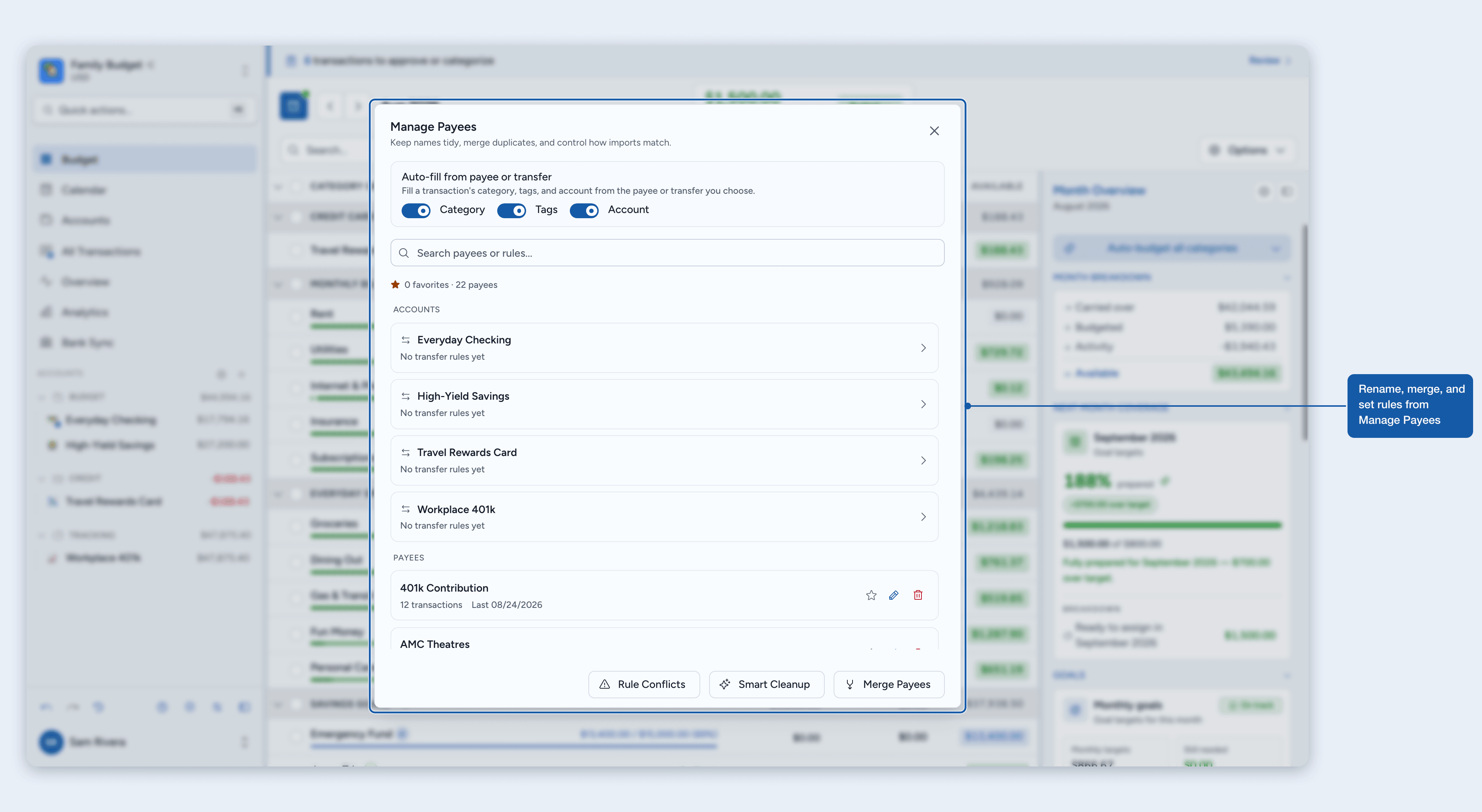
What Manage Payees controls
Clean names: rename or merge duplicates like "Amazon" and "AMZN MKTP".
Auto-fill behavior: suggest categories and tags from each payee, or turn either off.
Import matching: map raw bank names to the payees you actually use.
Transfer rules: route matching imports into a transfer with another account.
Category behavior
Choose what category fills in when a payee is picked, whether on a new transaction, during import review, or on an import match:
Recent category: fill in the category most of this payee's recent transactions used, so a one-off pick won't change it.
Fixed category: always use one category, whatever recent history says.
No category: leave it blank for mixed-use payees like Amazon.
ℹ️ Changing the payee on an already-saved transaction never silently re-categorizes it. Old transactions stay put unless you change them.
Tag behavior
Each payee can also fill in tags when you pick it. Unlike categories, tags start off for every payee; turn them on per payee from the payee's Behavior tab.
No tags: leave tags blank. This is the default for every payee.
Fixed tags: always apply the tags you choose, whatever you used last time.
Recent tags: reuse the tags from the last transaction you tagged for this payee.
Tag behavior fires in the same places as category behavior: picking a payee on a new transaction, and imports that match the payee. Tags you set by hand are never overwritten.
ℹ️ Recent tags remember a set, not a list. Categories track your recent picks and suggest the one most of them share. Recent tags keep the whole tag set from one transaction: the last time you saved that payee with tags, exactly those tags come back.
Account behavior
Each payee can also fill in the account while you add a transaction:
Recent: use the last account you used with this payee.
Fixed: always use one account.
None: keep the account already selected.
Account behavior only fires on new transactions. Imports already know their account, and editing a transaction never moves it between accounts on its own.
Turning auto-fill off budget-wide
Three switches at the top of Manage Payees, under Auto-fill from payee or transfer, control auto-fill for the whole budget: Category, Tags, and Account. Turn one off and no payee fills in that field anywhere, whatever its per-payee behavior says. The Account switch also controls Pay from account.
Switching auto-fill off doesn't erase anything. Every payee's behavior and remembered history stay in place, and Zerosum keeps learning what you use while the switch is off, so flipping it back on picks up right where you left off.
Favorites and most used
Your go-to payees stay at the top of the picker, on desktop and mobile, so you rarely have to scroll or search.
Favorites: star the payees you reach for often to pin them to the top. Tap the star beside any payee, in the picker or in Manage Payees, to favorite or unfavorite it.
Most used: the payees you use most, ranked automatically (up to five).
Favorites and Most used never show the same payee twice, and both sections hide the moment you start searching.
Remembered categories
Zerosum learns a payee's default category from its recent history. On Recent category, new transactions default to the category most of the payee's recent transactions used. The default only moves when a majority of the recent ones agree, so a single one-off (say a gift card at the grocery store) won't hijack it. With only a transaction or two on record, it falls back to the last category used.
The payee's Behavior tab shows the current default as read-only; you no longer add or remove entries by hand. The distinct recent categories still appear as a Last used shortcut group in the category picker. Credit-card and loan payment categories are driven by the payment flow, so they never appear here.
Nearby payees
Optional and mobile-only: while you add a transaction, Zerosum can suggest the payee you last used near where you are now. Review or clear a payee's history on its Locations tab.
Mobile add only: skipped for imports, import review, edits, and recurring transactions.
Private to you: saved spots belong to your account, even in shared budgets.
Easy cleanup: delete saved spots from Settings or a payee's Locations tab.
Per-transaction choice: on an eligible mobile add, the location button beside Payee starts on once a valid location is available. Tap it before saving to skip that transaction’s location. Nearby suggestions stay enabled, and previously saved locations are not deleted.
ℹ️ How your location data is handled: coordinates are stored as scaled integers at about 1 cm precision, with the accuracy your browser reported. Memories are tied to your account and never shared with other members of a shared budget. They're saved only after a successful mobile create with a real payee; transfers and special rows like starting balances are skipped, and splits remember the parent payee.
If you denied location access, the browser won't let Zerosum reopen the prompt. Set Location back to Allow in your browser's site settings (usually behind the lock icon near the address bar) or your phone's app settings, then reopen Zerosum.
Import rules
Import rules teach Zerosum that a raw bank string belongs to a specific payee. They're case-insensitive, ignore extra spaces, and live on the payee they map to. A rule is one of two match types:
Exact: match one full bank name, like "NETFLIX.COM 866-579-7172".
Contains: match a stable fragment, like "trader joe" or "spotify".
Any rule can be paused: a per-rule switch turns it off without deleting it (the rule then shows a Paused badge), handy when a pattern gets too broad.
When more than one rule matches the same name, a longer Contains pattern beats a shorter one, and an Exact rule always beats a Contains rule.
⚠️ Contains patterns need at least 4 characters. Short fragments like
BPwould hijack unrelated imports, so Contains needs four or more characters. Exact rules can be as short as two, since a full-name match validates itself. Pick the shortest pattern that's still specific:amazonworks,posis too broad.
Enriched bank names
Some bank providers send two names for one transaction: the full text on your bank statement, plus a cleaned-up merchant name they derive from it. A statement line like "PURCHASE INTO CORE ACCOUNT FIDELITY GOVERNMENT MONEY MARKET (SPAXX)" can arrive with the extra merchant name "Fidelity".
Zerosum always keeps the full bank text. It is what the Bank sent line shows, and it is what your rules match against, both the ones you add and the ones Zerosum learns. A rule like Contains "Purchase Into Core" keeps working even if the provider changes how it cleans up that merchant later.
The cleaned-up name has one job: finding a payee you already have. If it says "Fidelity" and your budget has a payee called Fidelity, the row resolves to that payee. If nothing matches, the row shows the full bank text in Review so you can pick or rename the payee as you see fit, and the payee is created when you save the transaction.
Hit count and last-seen
Each rule shows how many imports it has matched and when it last fired. Use the counts to spot rules that are too narrow (zero hits) or too greedy (high hits across unrelated transactions), and pause anything clearly mis-matching.
Where rules come from
A source badge on each rule shows who created it:
Manual: you added it from the payee's Rules tab.
Learned: a rule Zerosum added after you corrected an imported transaction. It becomes a Contains rule on the payee name when that name appears in the bank string, otherwise an Exact rule on the full raw name.
Migrated: carried over from the legacy import-aliases list.
Transfer rules
Some bank lines are not spending at all: they are money moving between your own accounts, like a credit card payment or a savings sweep. A transfer rule teaches Zerosum that a raw bank string means an internal transfer with a specific account.
Your accounts sit at the top of the payee list in Manage Payees. Open one to see and manage the rules that route imports into a transfer with it; you can also right-click an account in the sidebar and choose Transfer rules. Rules use the same Exact and Contains match types as payee rules, with the same pause switch, hit counts, and source badges.
When a transfer rule matches an import:
The row arrives in Review as a transfer with that account, so nothing posts without your approval.
If the other side of the transfer already exists in the destination account, approving links the two rows into one transfer.
Otherwise approving creates the other side for you, and both sides post together.
ℹ️ When a payee rule and a transfer rule both match the same bank line, the payee rule wins. And when the import already matches an existing transaction, that match wins over any rule.
Pay from account
Zerosum also remembers which account you pay or transfer from. Each account keeps its own memory: pay your credit card from checking once, and the next payment starts from checking instead of the first account in your list. Zerosum learns from the transfers you save and approve, including imported ones.
The memory fills in wherever you start a payment or transfer: picking a card, account, or loan in the payee picker, the card's Make Payment button, and the loan payment dialog.
Recent: use the last account you paid or transferred from. Suggestions only come from your budget accounts.
Fixed: always use one account.
None: keep the account already selected.
Change it from the same account view as transfer rules: open an account at the top of the payee list and pick a behavior under Pay from account. Like payee auto-fill, it only fires on new transactions, it never moves an import, and you can always pick a different account before saving.
Rule conflicts
Rules with overlapping patterns can claim the same bank line: "venmo" on a payee and "venmo cashout" on a transfer rule both match "VENMO CASHOUT 0093". When that happens, one rule wins by the ranking above and the others stay silent, which can be surprising.
Rule Conflicts, next to Smart Cleanup in Manage Payees, checks your whole rule set:
Imports matching more than one rule: real bank lines from your imports that several rules with different targets match, with the winning rule marked and a count of how often each line appears.
One pattern inside another: rule pairs where one pattern sits inside the other, so the longer or Exact rule takes every line both match.
Paused rules whose pattern is taken: an active rule now owns the same pattern with a different target, so resuming the paused rule fails until one of the two goes.
Pause or delete rules right from the list; the checkup updates as you act. An empty checkup means every import matches at most one payee or transfer target.
Learned mappings
When you swap a raw bank name for a real payee, Zerosum can remember the mapping and reuse it whenever that merchant shows up again. When your cleaned-up payee name appears inside the raw bank string, it learns a Contains rule on that name, so a later import still matches even when your bank changes the date, terminal, or wallet tag on each line. Otherwise it learns an Exact rule on the full raw name, which only re-matches an identical bank line. The offer appears as a checkbox while editing an imported transaction, and as a small toast with a Remember button when you change the payee from a row menu, the selection bar, or the mobile sheet.
A raw name arrives: "SHELL SERVICE STN 4471 LONDON" appears inline in the register as an in-review row without creating a junk payee.
You choose Shell Service Stn: keep the remember option on while you edit, or tap Remember on the toast after a quick payee change.
Next import matches: later imports from that merchant resolve to Shell Service Stn and use its category behavior, even when the rest of the bank line changes.
Marking an imported row as a transfer learns the same way: the editors offer a remember option, quick changes from a row menu, the selection bar, the mobile sheet, or the calendar show the same Remember toast, and approving an import you converted to a transfer learns the rule automatically. Transfers to a loan account count too. Zerosum learns an Exact transfer rule on the full raw name, and never offers one when the transfer points at the row's own account.
ℹ️ When learning is skipped: the final payee already matches the one resolved on the raw name; you turned the remember toggle off; or a broader Contains rule on that payee already covers the name. A linked import can learn when you genuinely change its folded payee during approval; simply approving the existing match does not create another rule.
Why the bank icon appears
The amber bank icon means the raw bank descriptor is different from the payee Zerosum resolved. Hover or focus it on desktop; mobile shows the same text as a Bank sent line.
STARBUCKS → Starbucks: no icon, because matching ignores case and extra spaces.
POS PURCHASE 4312 STARBUCKS → Starbucks: icon shown, because a fuzzy match or import rule rewrote the bank text.
PURCHASE INTO CORE ACCOUNT FIDELITY... → Fidelity: icon shown, even when the provider’s cleaned-up merchant name matched your payee exactly. The icon follows the full bank text, never the cleaned-up name, so you can always see what your bank really sent.
No resolved payee: the raw bank text is already the visible name, so no second icon is needed.
The raw descriptor is provider metadata, not another payee. It stays attached after approval. If the raw text still differs from the payee you kept, the bank icon remains on the approved transaction so the match is always auditable.
Merge and cleanup
Merging keeps all history under one payee. Smart Cleanup finds bank-looking names (long all-caps strings, account numbers, IBANs) and groups them with the clean payee they belong to.
Merge Payees: pick one or more payees and fold them into the one you keep.
Smart Cleanup: review grouped suggestions before merging noisy names. Each suggestion groups every bank-looking name pointing at the same payee; approving it merges them at once, folding their history and any import rules into the payee you keep.
💡 Tip: Smart Cleanup never merges on its own. Skim each group first, since an unrelated noisy name can occasionally slip in.