Importing Transactions
Import CSV, OFX, QFX, and QIF files safely, review matches, prevent duplicates, and recover from import mistakes.
Written By Pedro
Last updated 28 days ago
Import transactions from a CSV, OFX, QFX, or QIF file downloaded from your bank. Zerosum previews the file before saving anything, skips transactions the account has already seen, and sends new rows to Review.
Choose a file format
CSV (.csv) works with most bank exports. You map the date, payee, memo, and amount columns before importing.
OFX / QFX (.ofx, .qfx) uses a fixed banking format and usually includes a bank-issued transaction ID (FITID) for exact duplicate detection.
QIF (.qif) is an older fixed format with date, amount, payee, and memo fields.
💡 Tip: Prefer OFX or QFX when your bank offers it. The bank-issued IDs make duplicate detection more precise.
Import a file
Open the checking, savings, cash, or credit-card account that should receive the transactions. Loan accounts cannot receive file imports.
Open the toolbar's More actions (⋯) menu and choose Import transactions.
Choose a supported file. Zerosum accepts up to 20,000 parsed transactions in one import.
Review the preview and import options, then choose Import.
ℹ️ Privacy: The raw bank file is parsed in your browser. Nothing is saved while you are checking the preview. After you confirm the import, the parsed transaction fields needed for the import are sent to Zerosum and stored in your account; the raw file itself is not uploaded or stored.
Check the preview
The preview is the last check before anything is saved. Confirm that dates, payees, notes, inflows, and outflows look right. A wrong date format or reversed amount direction can create transactions that no longer match the identities from a corrected import.
CSV columns and dates
CSV layouts differ between banks. Zerosum auto-detects common column names and delimiters, but you can change:
Date column and format, including YYYY-MM-DD, MM/DD/YYYY, and DD/MM/YYYY.
Payee and memo columns.
Amount mode: one signed amount column or separate inflow and outflow columns.
Flip sign when your bank exports expenses as positive amounts.
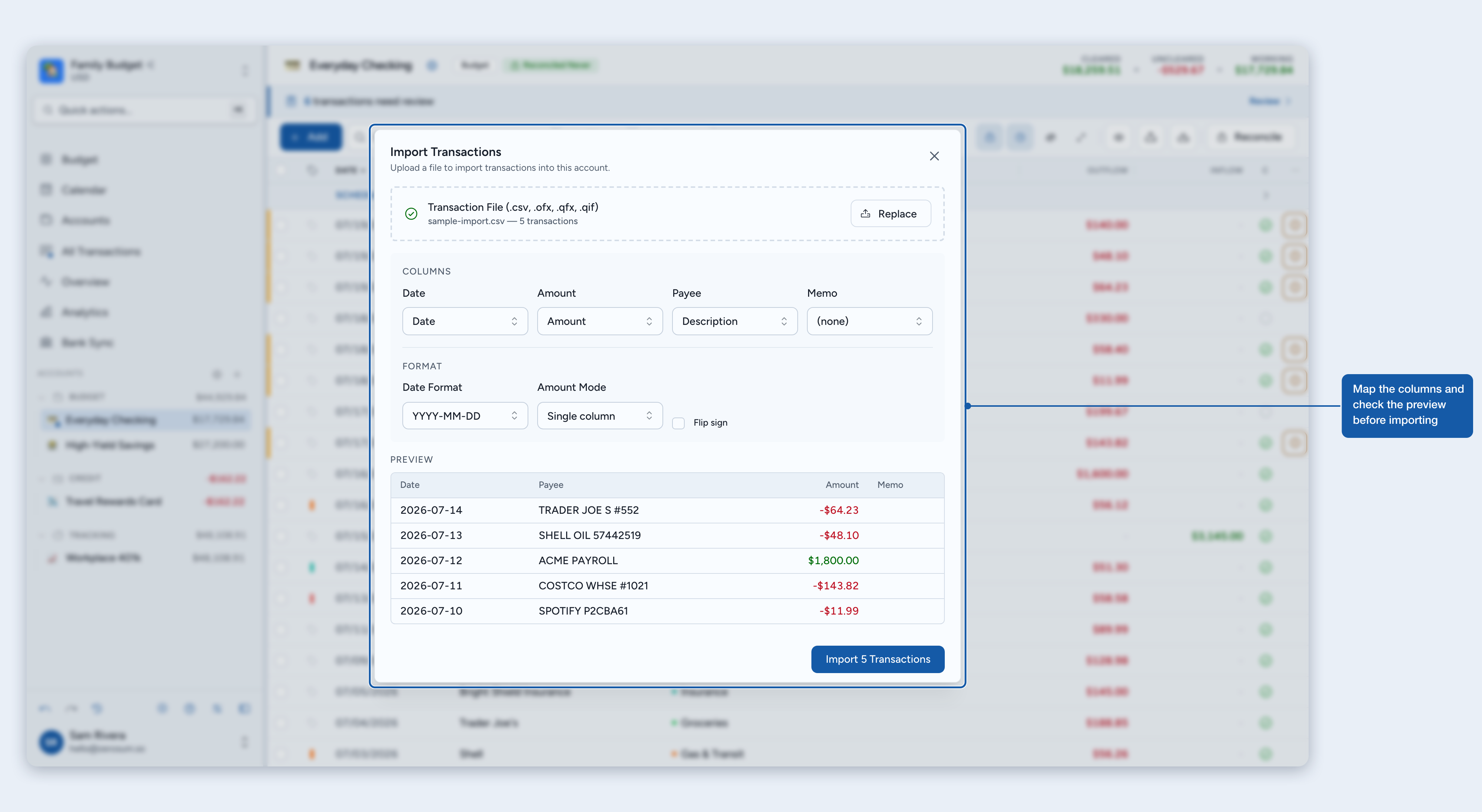
💡 Tip: Check several rows in the preview, especially dates and amount direction, before continuing.
OFX, QFX, and QIF options
OFX and QFX have a fixed structure, so Zerosum extracts dates, amounts, payees, memos, and available bank IDs automatically. QIF is also parsed automatically; choose the correct date format if detection is uncertain.
What gets imported
New file rows are created as pending transactions in Review. The import carries the date, amount, payee or raw bank name, memo, and available bank identity. Categories and split details are not imported from the file. Add categories, splits, tags, or other budgeting details while reviewing.
ℹ️ Important: Pending transactions do not affect the budget until you approve them.
Review and match transactions
Imported rows appear in the normal account register with Approve and Reject actions. Zerosum cleans common bank-name noise and uses exact and fuzzy payee matching; you can choose or create a payee and remember the mapping for later imports. See the Manage Payees guide for mapping and category-behavior options.
If you already entered a transaction manually, Zerosum can link an import with the same account and exact amount when the dates are close. You can also match eligible rows manually, including when the amounts differ. Linked rows let you compare the previous entry with what the bank sent before approving, rejecting, or unlinking. Read Scheduled & recurring transactions and Reviewing, matching & linking imported transactions for the complete rules.
How duplicate prevention works
Duplicate history belongs to each account. You can safely import overlapping or repeated exports into the same account: Zerosum checks both transactions already present and imported identities you previously rejected or deleted.
OFX / QFX primarily uses the bank-issued transaction identity together with the account.
CSV / QIF uses the account, date, amount, and occurrence position so two genuine same-day transactions for the same amount can still import separately.
Across file types, Zerosum also applies one-for-one date-and-amount protection so a row already represented by one source is not duplicated by another source.
Changing a transaction's date or amount can make it look like a new transaction. When the import finishes, the success message reports how many transactions were imported, linked to existing entries, and skipped as duplicates.
Deleted imports do not come back
Rejecting a transaction in Review—or deleting it after approval—records that you intentionally removed that imported transaction. Zerosum will skip the same identity if a later file contains it again for this account. This protection is permanent and prevents overlapping bank exports from repeatedly restoring transactions you do not want.
Duplicate history belongs to the account. The same file can still be imported into a different account, where it represents separate account history.
Correct a mistaken import
ℹ️ Imported the file with the wrong columns, date format, or amount direction? Undo the Imported transactions from file action instead of rejecting or deleting the rows one by one. Correct the import options, then import the file again. Undoing the import removes the batch without marking those transactions as rejected.
If you rejected or deleted individual imports accidentally, undo or revert that action while it is still available in History. Otherwise, enter the missing transactions manually. For a large historical re-import, the last resort is to create a replacement account, move the history you want to keep, and import into that new account.
Troubleshooting
The import says transactions were skipped. The account has already seen those imported identities, including rows previously rejected or deleted. This is expected duplicate protection. Follow the Undo guidance above if the whole import was a mistake; otherwise restore the individual action from History when available or enter the missing row manually.
Dates look wrong. Change the CSV or QIF date format and check the preview again.
Amounts have the wrong sign. Use Flip sign for CSV exports that show expenses as positive.
Columns are not detected. Select the date, amount, payee, and memo columns manually.
The file is rejected. Confirm that it is CSV, OFX, QFX, or QIF, contains no more than 20,000 parsed transactions, and is being imported into a non-loan account. If your bank offers only PDF or Excel, export as CSV.