Reviewing, matching & linking imported transactions
Learn how imported transactions are reviewed, matched, linked, approved, rejected, and unlinked—including pending-to-posted changes, bank payee icons, splits, and duplicates.
Written By Pedro
Last updated 5 days ago
Whenever a transaction arrives from a bank sync or a file import, Zerosum tries to recognize it, match it to something you already have, and keep anything uncertain in front of you to decide.
Where imported transactions appear

Posted transactions land right in your register, sorted with everything else and marked with an amber edge. They count toward your balances and budget the moment they arrive, so approving is just you confirming a row, not what makes it count.
A banner at the top of every budget page shows how many still need you, reading N transactions to approve or categorize. Click it to focus on just those, then Show all to come back.
Pending at bank

Raw bank pending authorizations, like a gas-station hold or a hotel deposit, wait in their own greyed Pending at bank section above the register. They are the one kind of imported row that does not touch your balances or budget yet, because the amount, date, or payee can still change before the bank posts them.
Enter Now drops the row into your register as an uncleared, already-approved transaction. It only needs a category if it does not have one.
Edit does the same thing: any change you make, even a tag or a receipt photo, enters the row.
Reject clears the preview and remembers your decision on every bank sync provider. If the bank really posts it later, it comes back fresh.
To leave a row waiting at the bank, just do not touch it.
You can also act on several at once. Tick the previews with their checkboxes on desktop, or long press a card on your phone to start selecting, then use the selection bar to Enter Now or Reject the whole group together. The selection can also mix previews with scheduled transactions: one Enter Now posts both kinds at once, and one undo reverses the whole batch. To match a preview to an entry you already have, select the preview and that entry and choose Match.
Approve, edit, reject
Approve confirms a row that is already counting and locks in its category. For a matched pair it collapses the two rows into one, and never double counts.
Edit lets you fix the payee, category, note, tags, date, amount, or split. Saving an edit on a matched row approves it; on a scheduled row, picking a future date sends it back to Scheduled so you can delay a bill.
Reject removes an import and remembers it, so the same one will not reappear. Use Undo if you change your mind. Delete is for approved transactions, not in-review ones.
What a matched row means
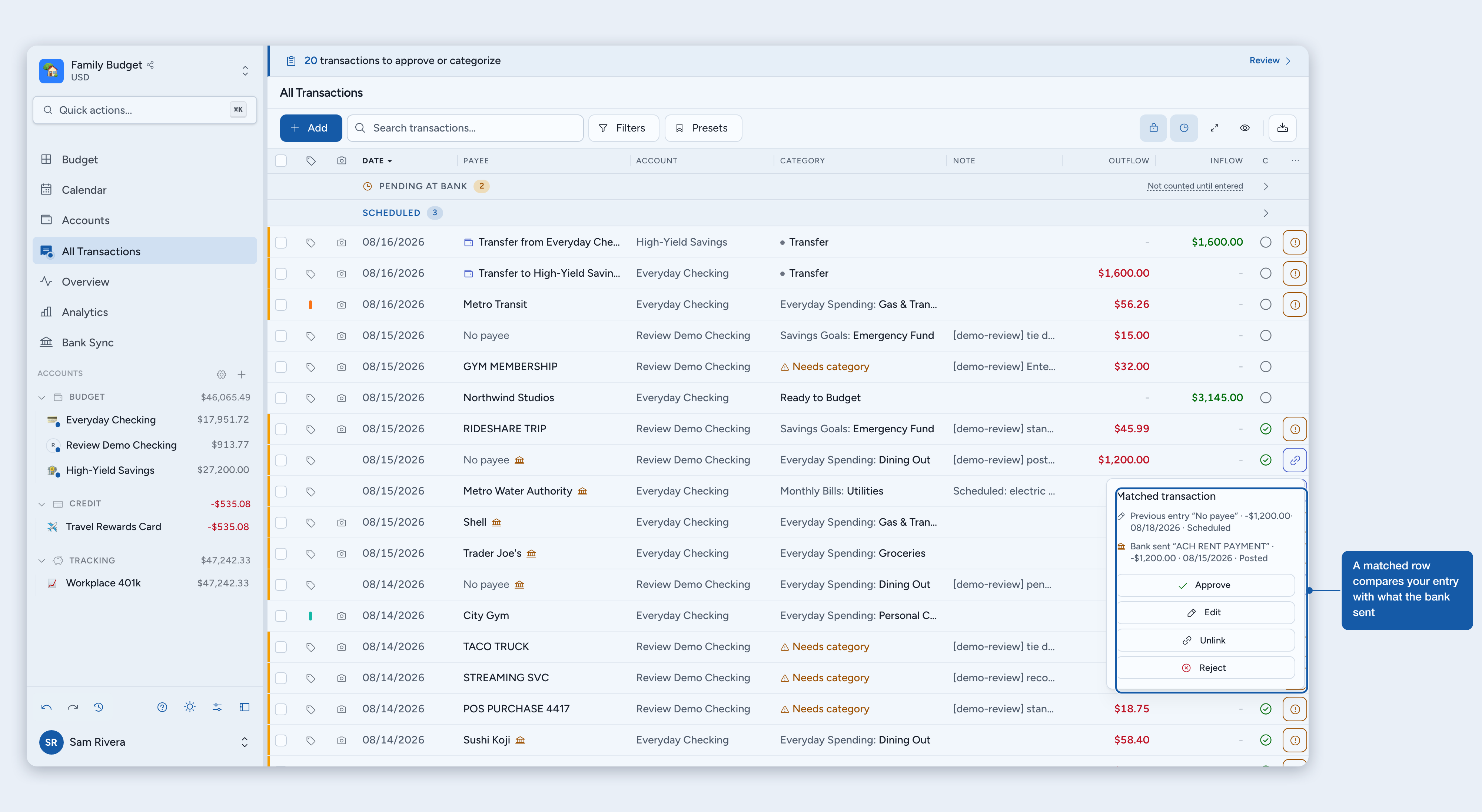
A match means Zerosum believes two rows are the same real transaction, so it shows one Matched transaction row instead of two. Open it (click the icon on desktop, tap the card on mobile) to compare Previous entry, what you already had, with Bank sent, the provider's payee, amount, date, and posted state. The row keeps your details but adopts the bank's amount and cleared state, so the pair counts exactly once.
Approve collapses it into one. The bank amount and cleared state win; your date and budgeting details stay.
Edit lets you change anything first; saving approves and collapses.
Unlink (U) splits the two back apart. Zerosum will not auto-match that pair again, so use Match if you change your mind.
Reject drops the bank side and keeps your entry.
ℹ️ Reconciled transactions are protected. A bank correction waits as a review row instead of changing them. Approving keeps them reconciled; rejecting or unlinking leaves them untouched.
How matching works
Zerosum leans on the most reliable signal it has and gets more cautious as certainty drops. When Plaid or Lunch Flow says a posted transaction replaces a pending one, it trusts that. Otherwise it looks for a same-account row with the exact same amount within about a week, and deliberately ignores the merchant text, since banks rename things between pending and posted. Identical candidates pair up one to one, oldest first, so three matching charges settle into three entries cleanly. Zerosum only refuses to guess when a candidate is already matched to one of your entries; that arrival stays a visible duplicate you can Match by hand.
It also links a fresh import to an entry you already have when the amount matches to the cent and the dates fall within 10 days, in either direction. Identical same-day charges, like three phone lines billed together, pair up one to one instead of blocking each other. Add a manual transaction after an import is already waiting, and it finds it too. Old history imported today will not latch onto month-old entries, and there is never a near-miss or percentage tolerance: the amount has to match exactly.
When the bank posts a scheduled transaction early
If an import matches a future scheduled occurrence, Zerosum pulls it into review on the bank date. Approve posts it and advances a recurring series, Reject restores the schedule, and Unlink restores the schedule while you review the bank row on its own. See Scheduled & recurring transactions for the details.
Match two transactions yourself
Select exactly two rows in the same account and choose Match (or press Shift + L). It appears when one row is an unlinked import and the other is eligible: an approved transaction, a future scheduled one the bank posted early, or an uncleared pending import. Amounts can differ, but both rows must be inflows or both outflows. When a pair does not qualify, Match stays visible but disabled and tells you why: the entry may already be matched to another bank transaction, the rows may sit in different accounts, or one side may be a transfer or a split child. On desktop you can also right click any selected row to open the selection actions, Match included, at your cursor. If a matched split does not add up to the bank amount, approving adopts the bank total and drops the difference into an Uncategorized line.
Why a bank icon appears
The amber bank icon means the bank's raw text differs from the payee you see. Hover it on desktop, or look for the Bank sent line on mobile. STARBUCKS becoming Starbucks shows no icon, since only the case changed; POS PURCHASE 4312 STARBUCKS becoming Starbucks shows one, so you can check the match. It sticks around after you approve if the raw name still differs from the payee you kept.
A couple of examples
A tip changes the amount. You approve a €50 pending restaurant charge and it posts for €60. Your €50 entry stays put while a linked €60 correction waits for review. Approve to bump it to €60 and clear it. Either way, your balance already reflects the €60 the bank posted.
Two rows for one purchase. A pending charge and its posted version both show up because the provider did not link them. Select both and choose Match: the pending one becomes the previous entry, and the posted one becomes the bank's version. If both rows are still pending, enter one first, then match the other to it; if both already posted, approve one first.
If you still see a duplicate
Duplicates stay visible when a match would be a guess. Compare the account, date, amount, and bank text, then Match them if they are a pair or Reject the in-review one. If Match shows disabled, its reason explains exactly what blocks the pair. Showing you the duplicate is safer than quietly merging two real purchases.